Animation Compression in Unity
Inspired by a small talk with a technical artist around, I realized many game design artists are often faced with an issue concerning animated file management. With, at many times, a couple hundreds of animation clips in a working project, plenty of storage has to be spared for such, even if sometimes the original files are overly-sufficient for their project purposes. Therefore, I made my attempt to develop an animation compression script that helps artists reduce the size of their files by mainly reducing parameter digits, modifying rotational & positional errors and deleting the scale factor, the extents of which depends on different demands.
Completion Date: 2024/11/05
Tool: Unity
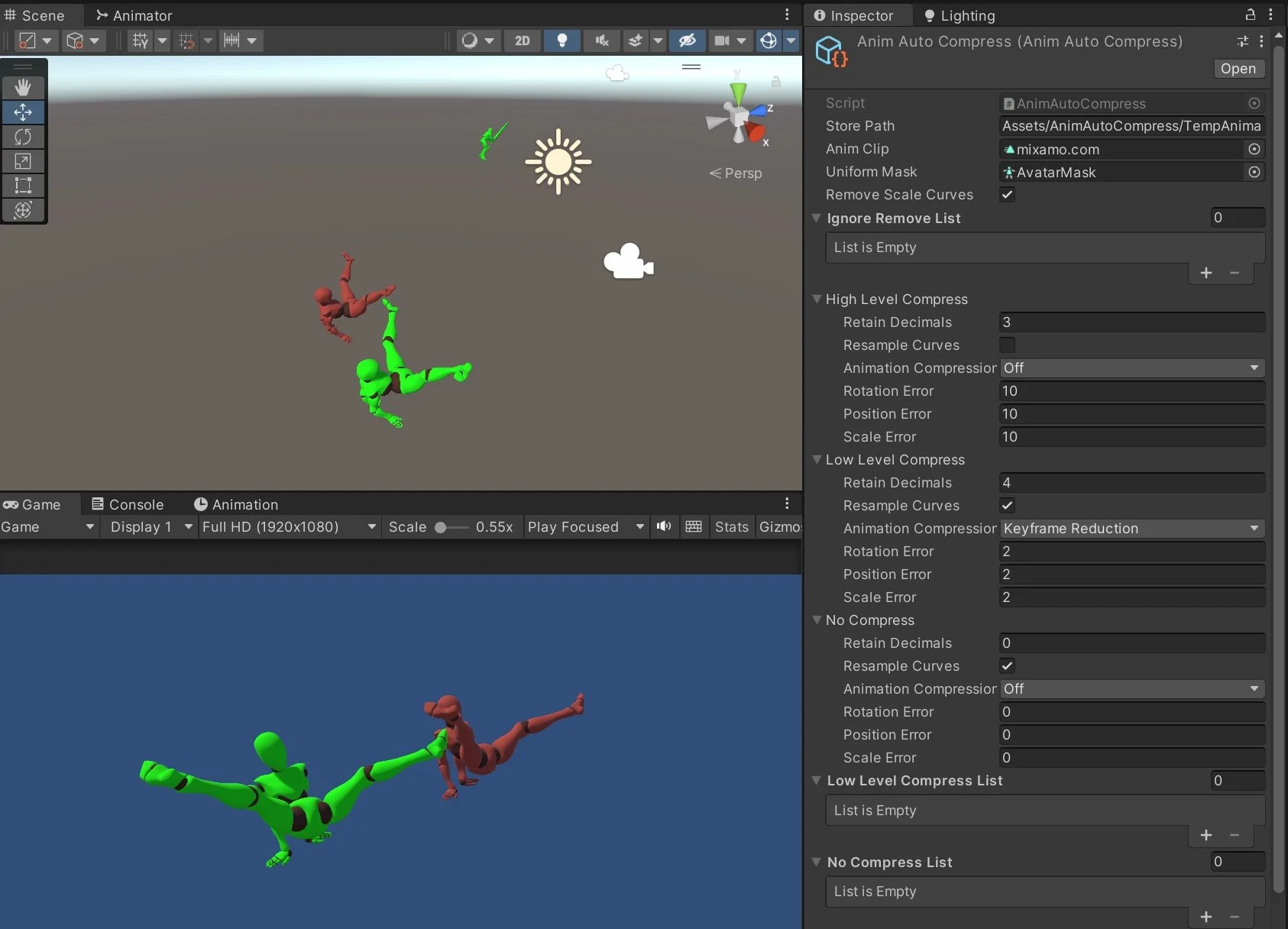
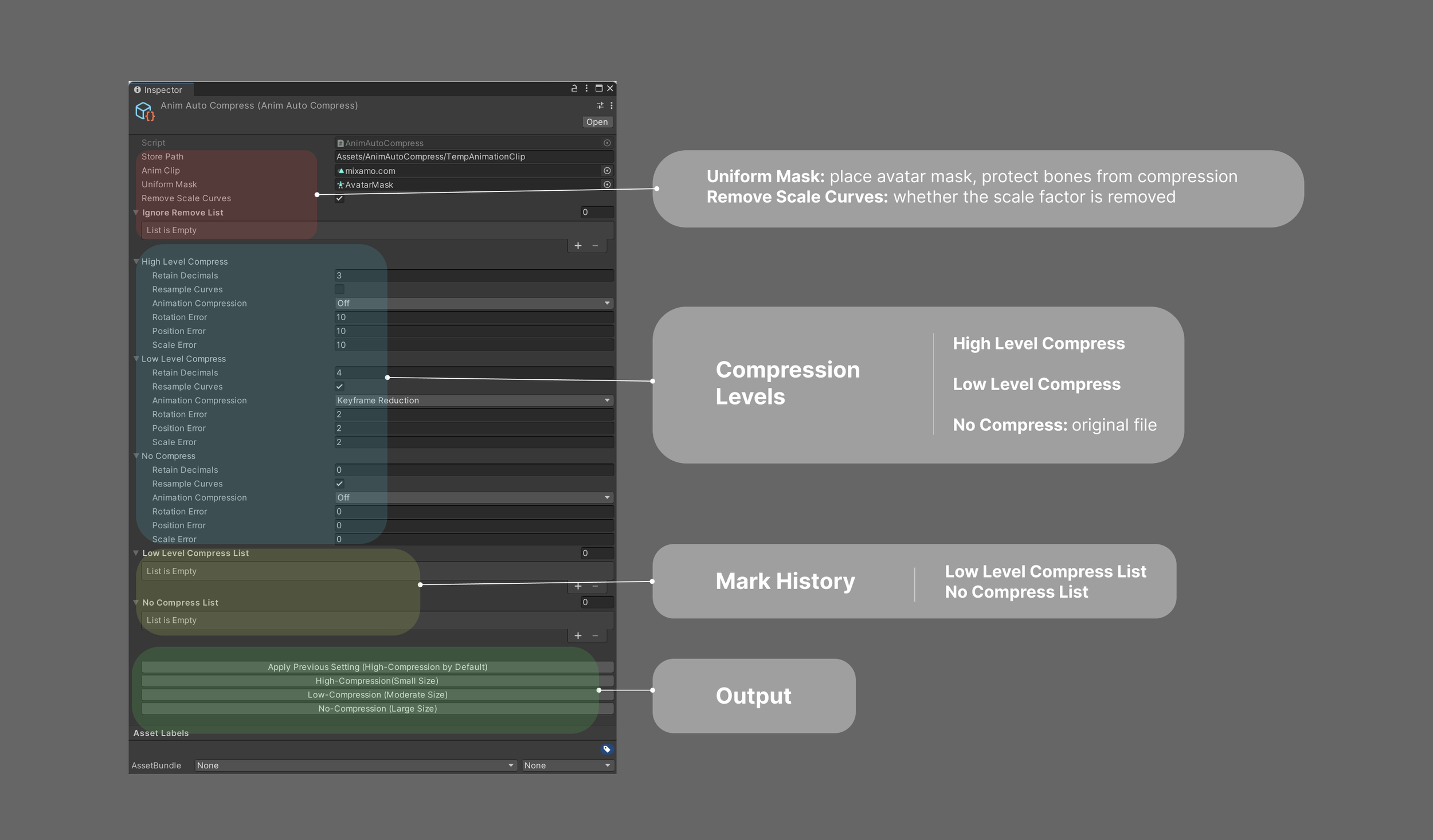
Function illustration in inspector panel
Basic Functions
Compression
Retain Parameter Decimals
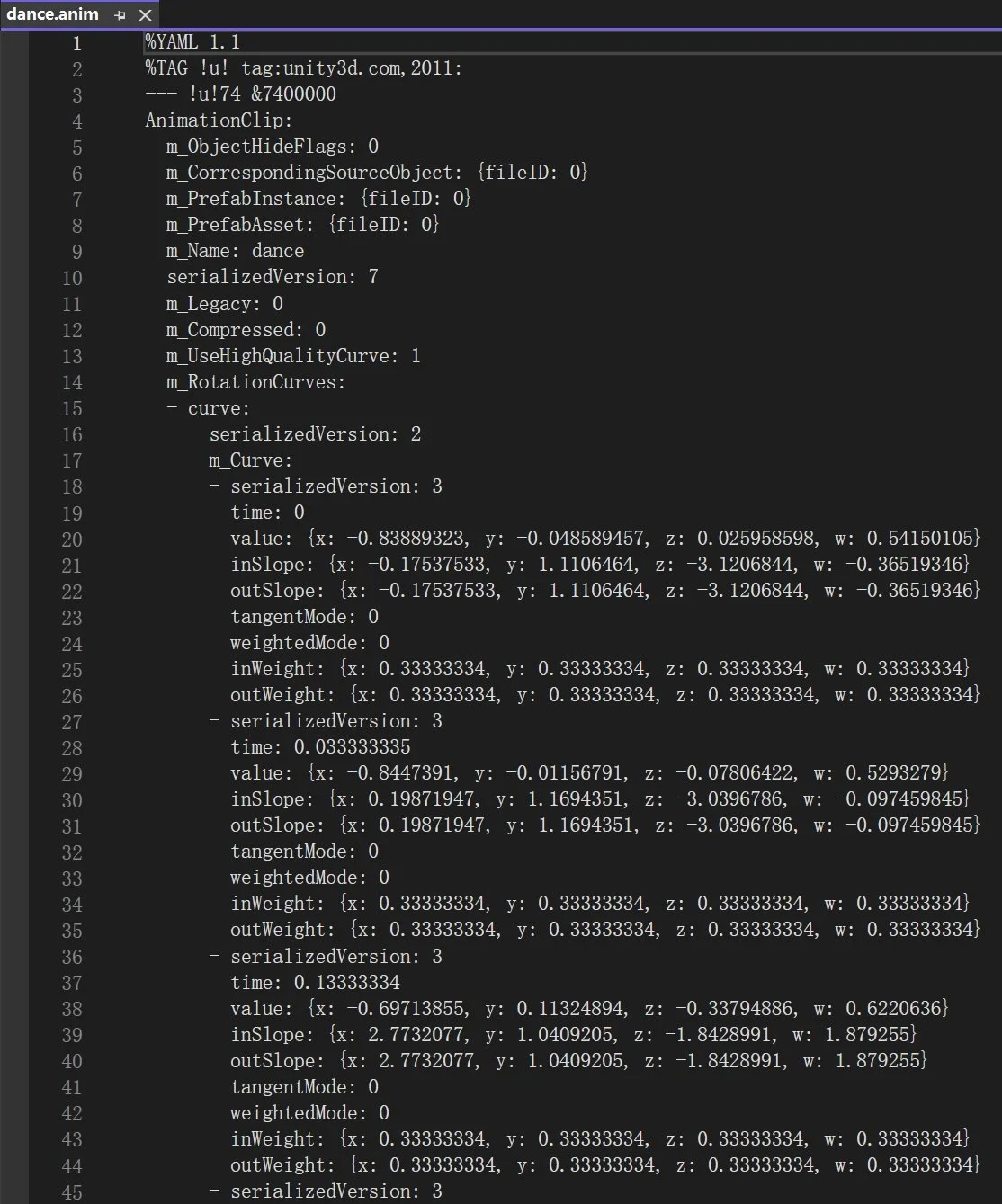
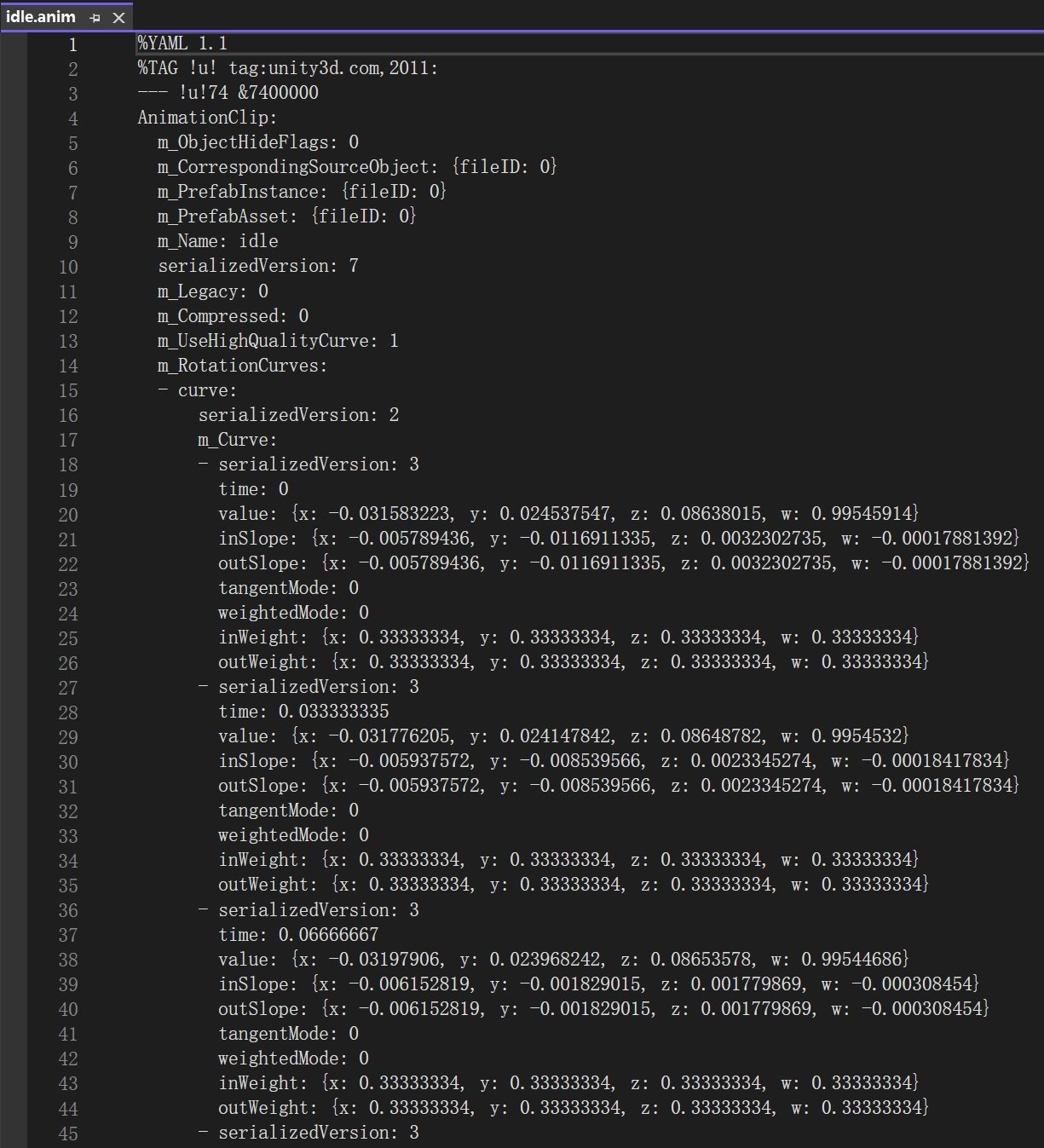
Opening a dance & an idle animation clip file in Visual Studio
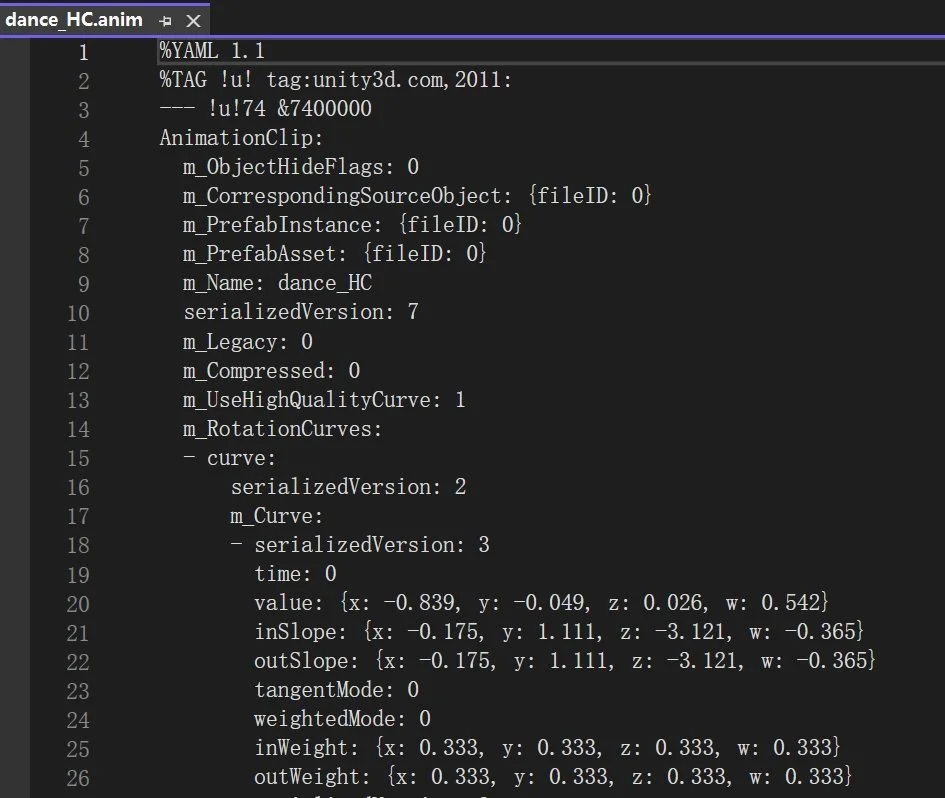
Dance.anim after decimal retain (to 3 digits)
As I check the animation clip files from several packages downloaded from mixamo, I found that the parameters values keep many decimals, which inspires me to reduce the number of digits during compression.
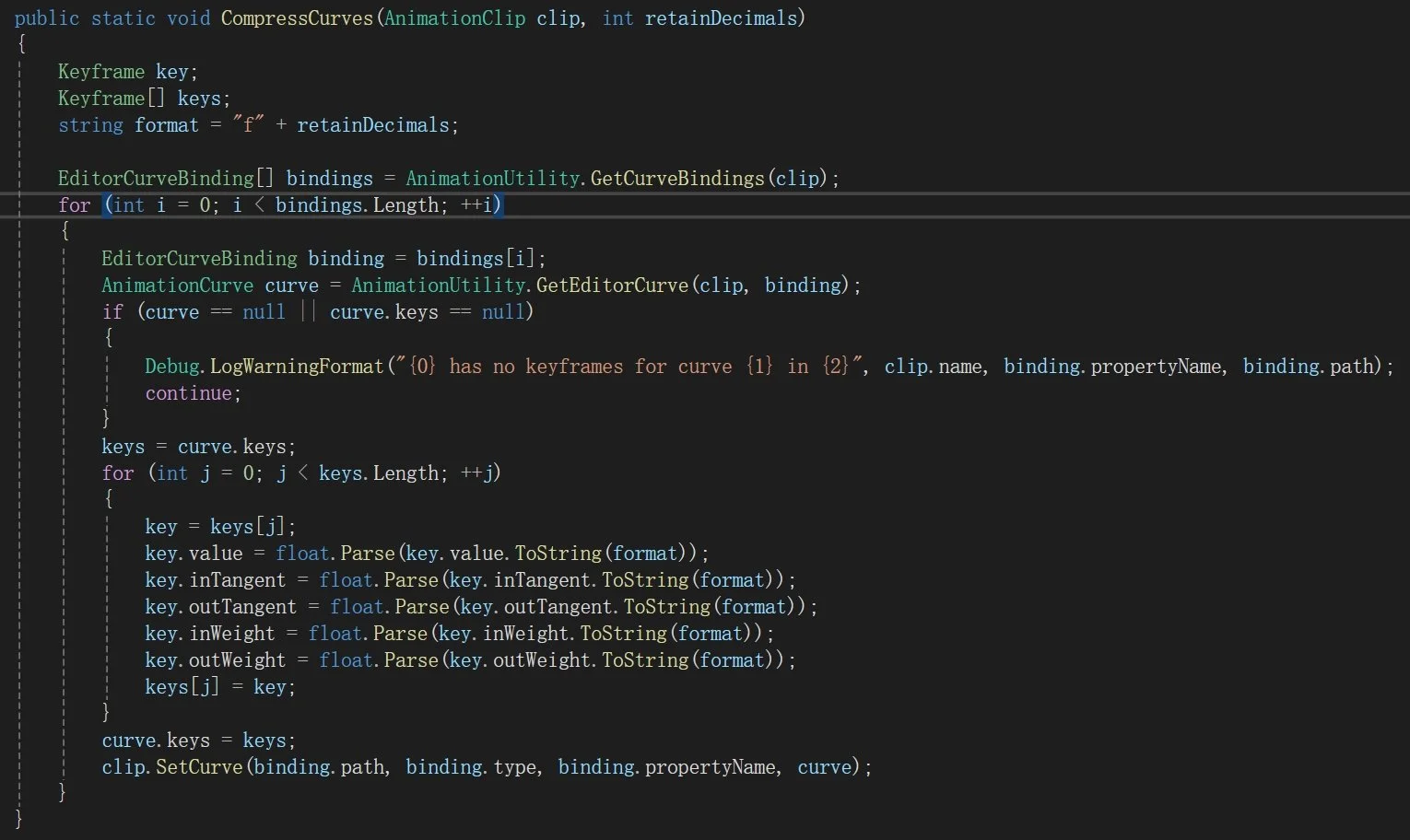
Code Sample
Therefore, I could abandon some numerical information that are not so influencing for the file. Here I showed an example of reducing the numerical values to 3 digits with a dance clip. As we could oberseve, the difference is no so obvious. Without influencing the quality of the animation, we could apply this compression to extents we believe are appropriate.
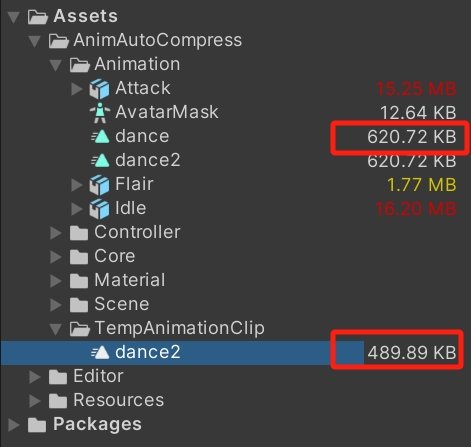
File size change after decimal retain only (3-digit)
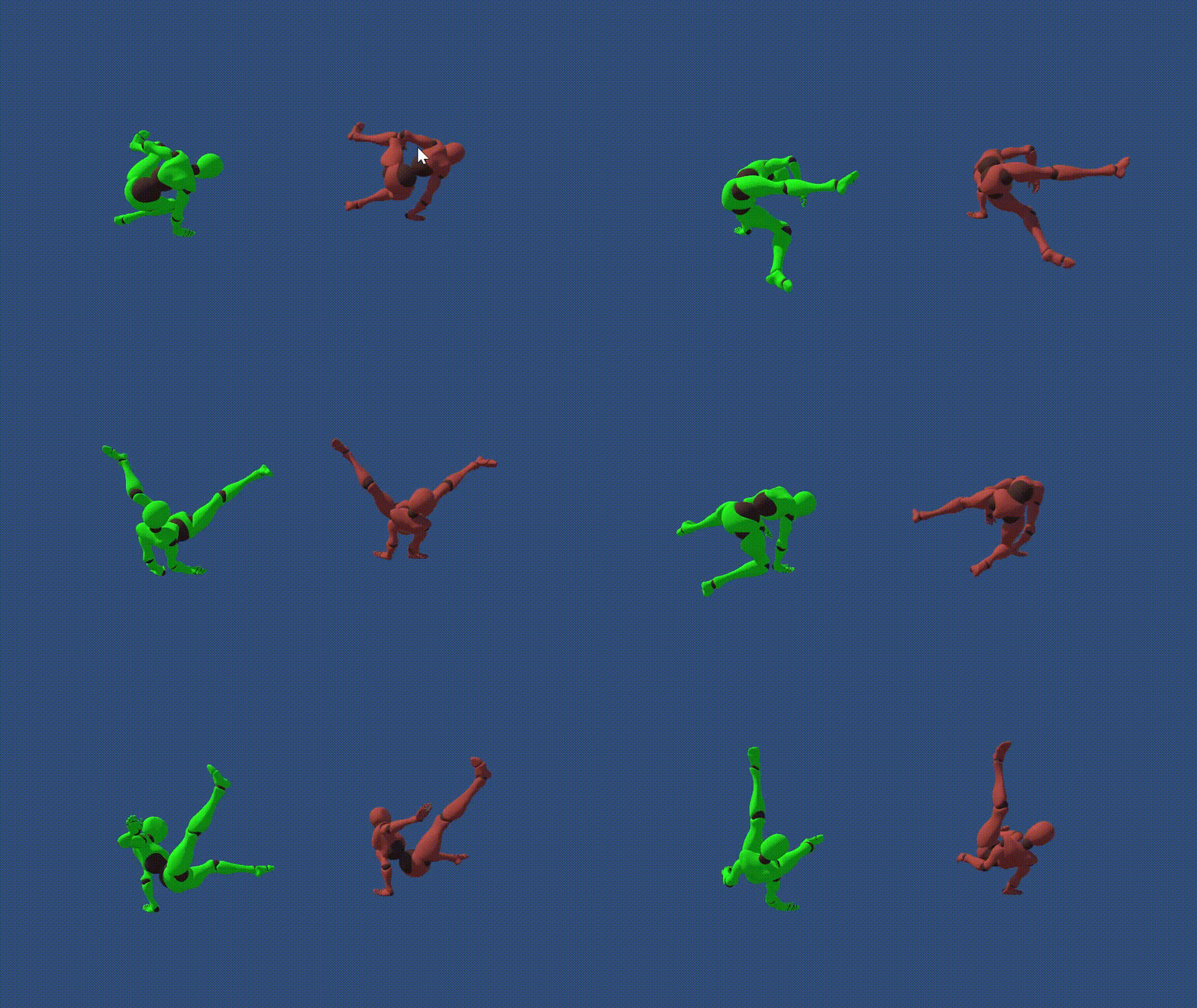
Retained behavior (green, left) & original behavior (red, right)
To cater for potential differences in demands, the retain decimal function is defaulted with different values (for convenience). In my script I set three default retain decimal levels. High compression would keep 3 decimals, low level would keep 4 and there is a no-compression level indeed. The choice of retain digits is more relevant to the specific demands of the project, in this case this is only an example to show operation management.
Compression
2. Deleting Scale Keyframe
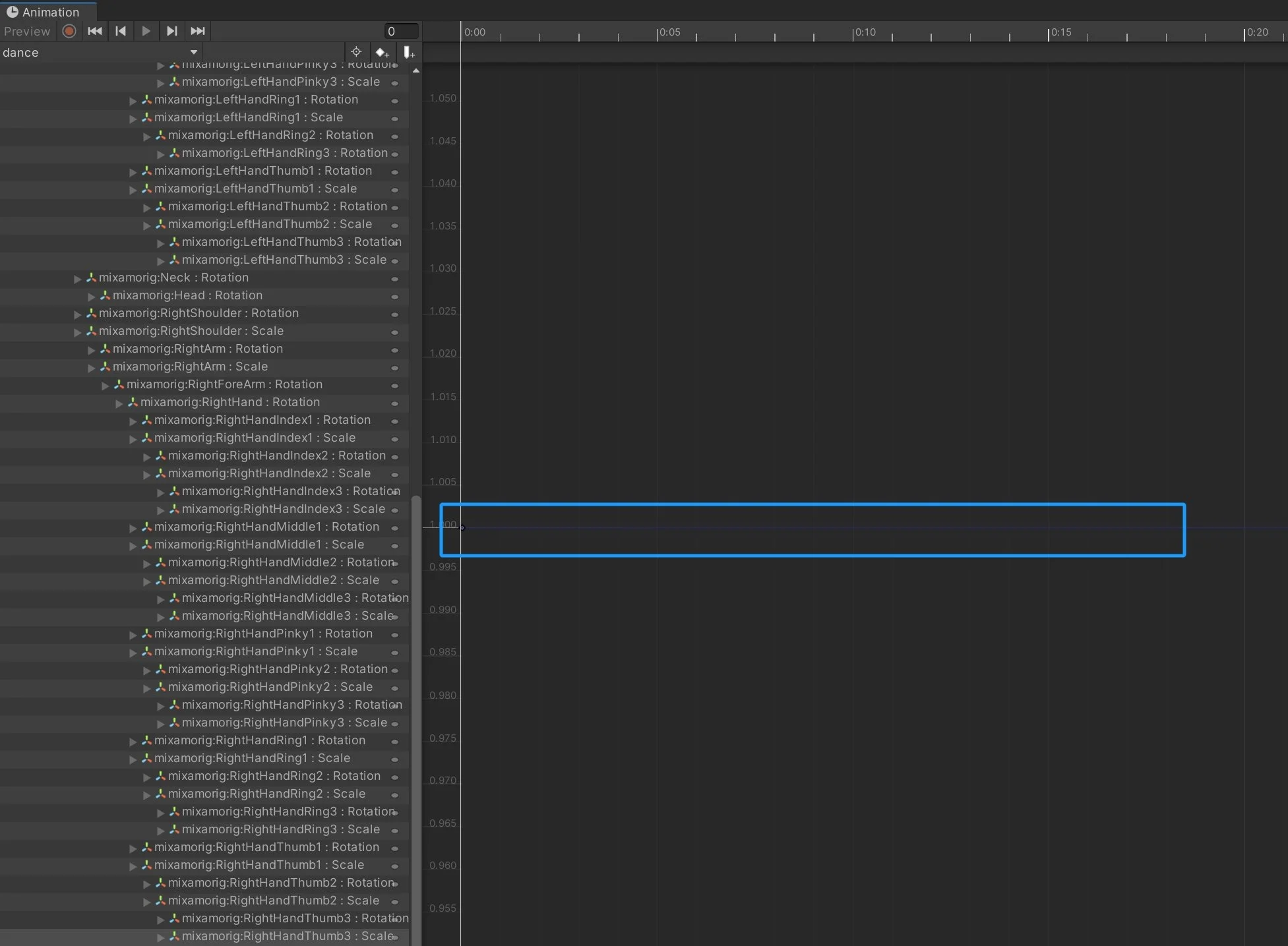
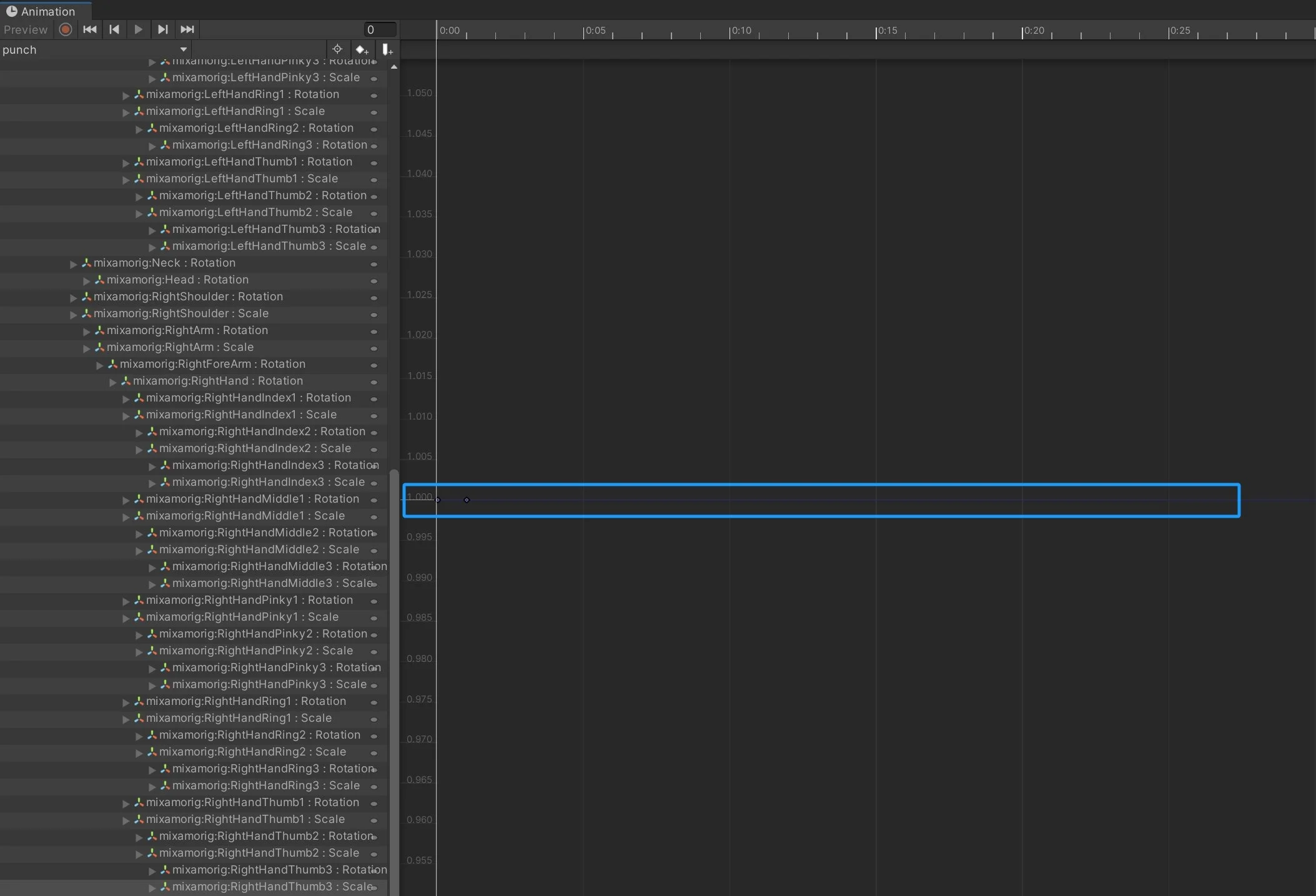
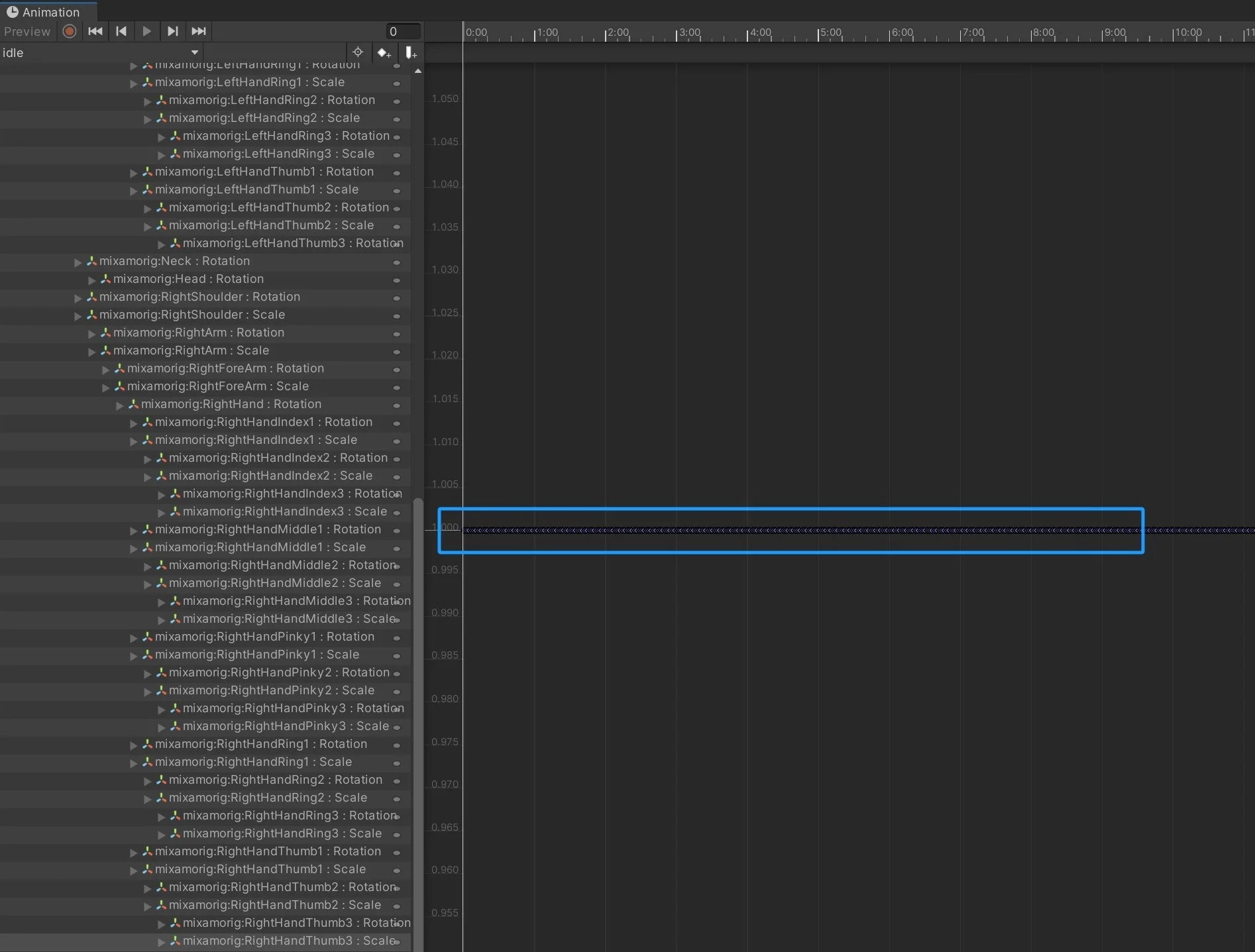
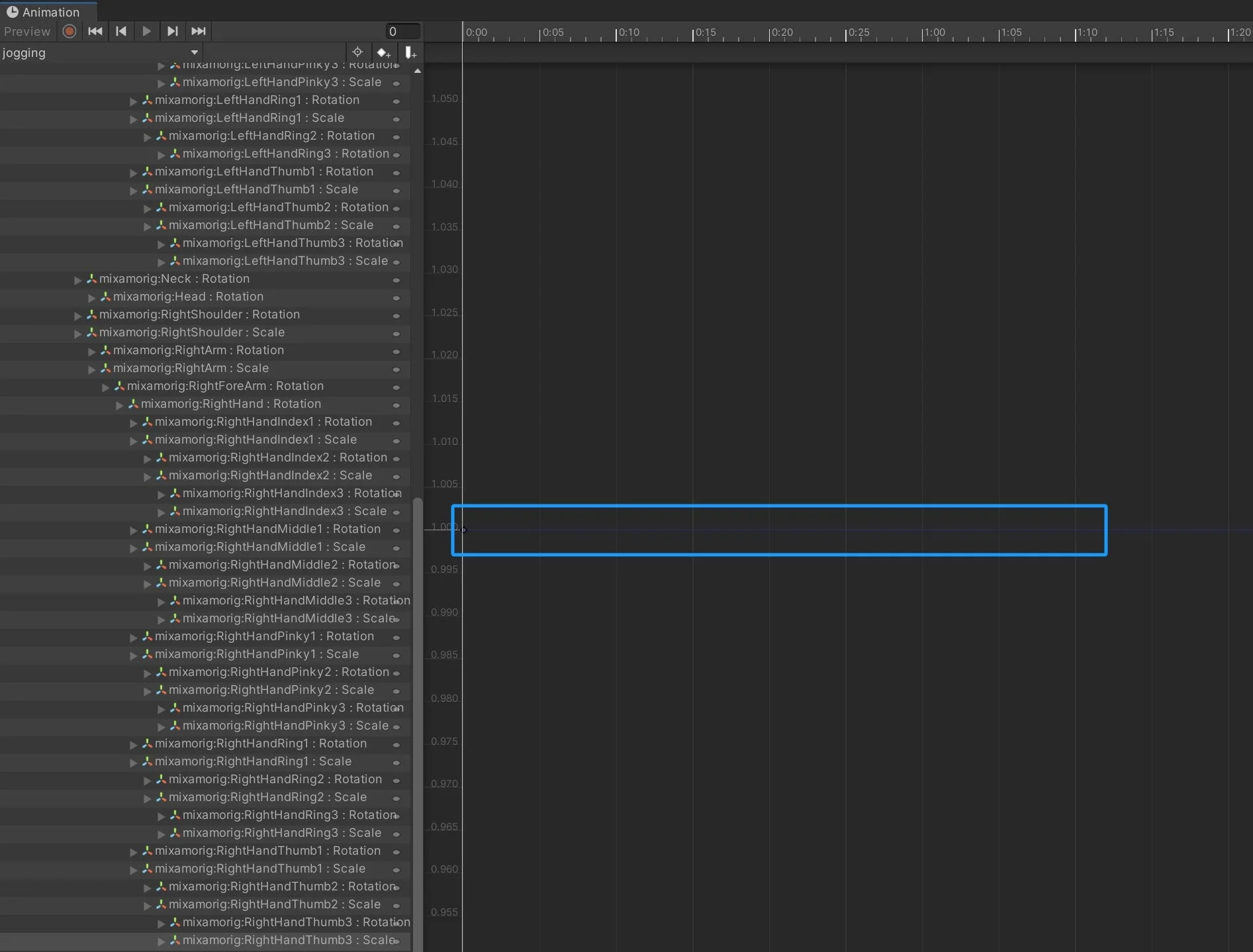
The scale keyframe curve of four different animation clip files
Apart from retaining decimals, I also realized when I skim through the animation clips that, almost all the files I see have an unchanged scale curve. In this case. this value could be abandoned to reduce file size.
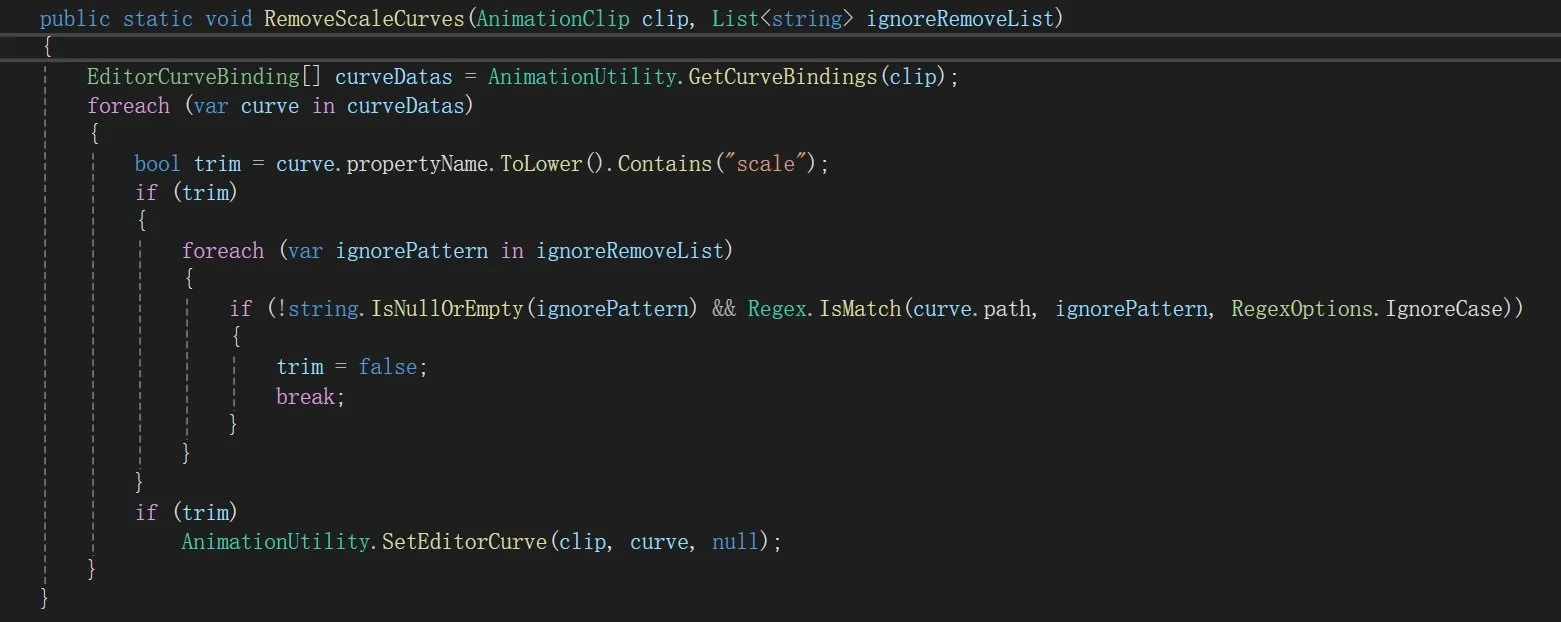
Code Sample
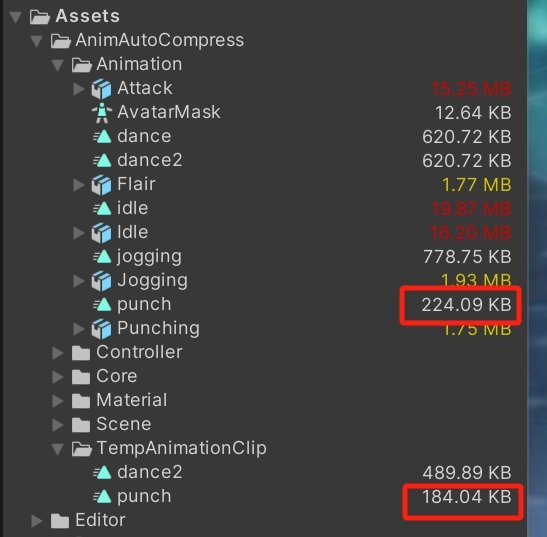
File size change after scale remove only
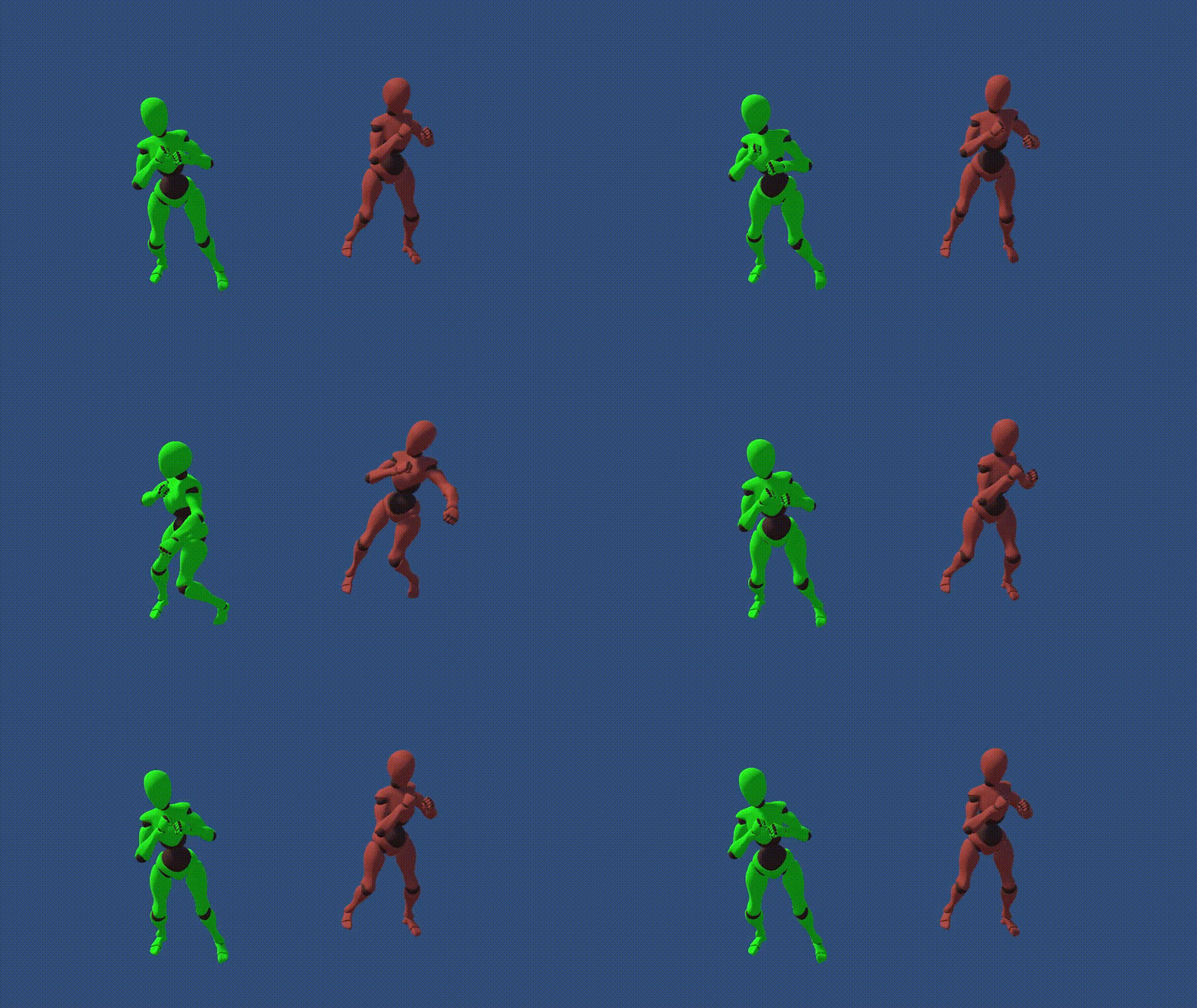
Scale removed behavior (green) & original (red)
Indeed, conerning that there may be cases in which scale varies over time. Therefore, users can enable and disable this process freely. By default, however, the scale factor is removed.
Compression
3. Import Setting & Level Settings
As I scroll through the settings of the model files, I found that as I made a copy of the clip from the original file, I could no longer modify its settings. In this case, the compression should be done before the copying process, meaning the change of parameters needs be done before this. Therefore, I looked up a model file to see what exists.
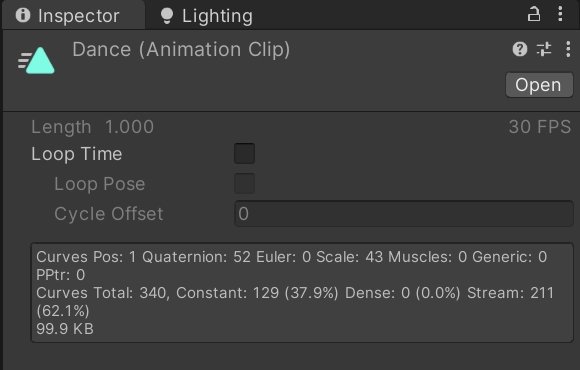
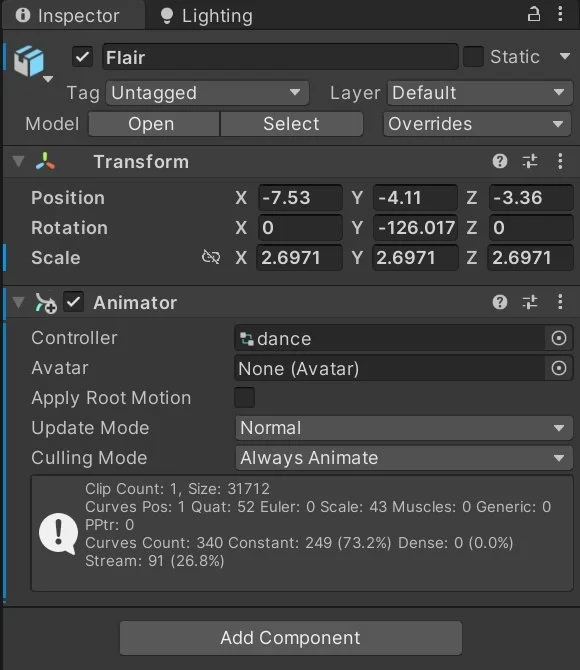
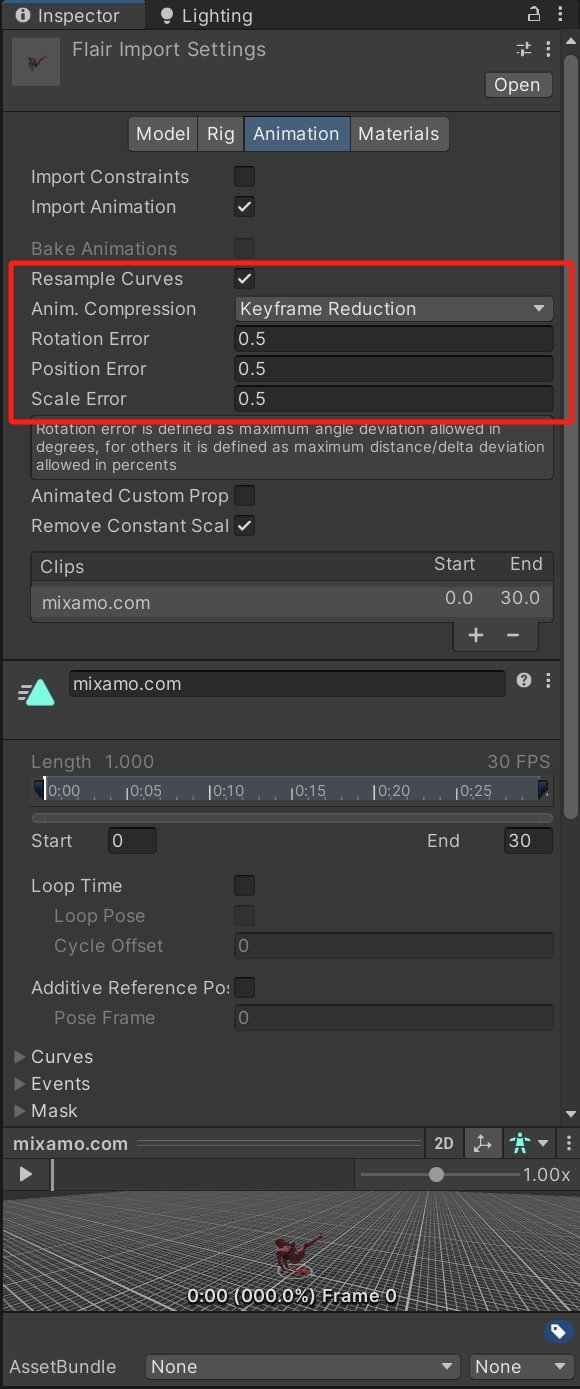
Clip not avaliable for modification after copied (left two) & paramenters that exist & can be modified (right)
The parameters are: Resample Curves, Anim.Compression, Rotation Error, Position Error and Scale Error. Anim.Compression can be accessed by Unity’s inspector:

During compression, the values will be mapped from the choice of input from the user’s side.
With various values changable, I see the necessity of including a systematic function that catergorizes my operations and keeps tracks of them, making my project more managable. In this case, I decided to set up different levels for different compression extents. In this illustration, I’ve set up three levels: High-Compression, Low-Compression and No Compression.
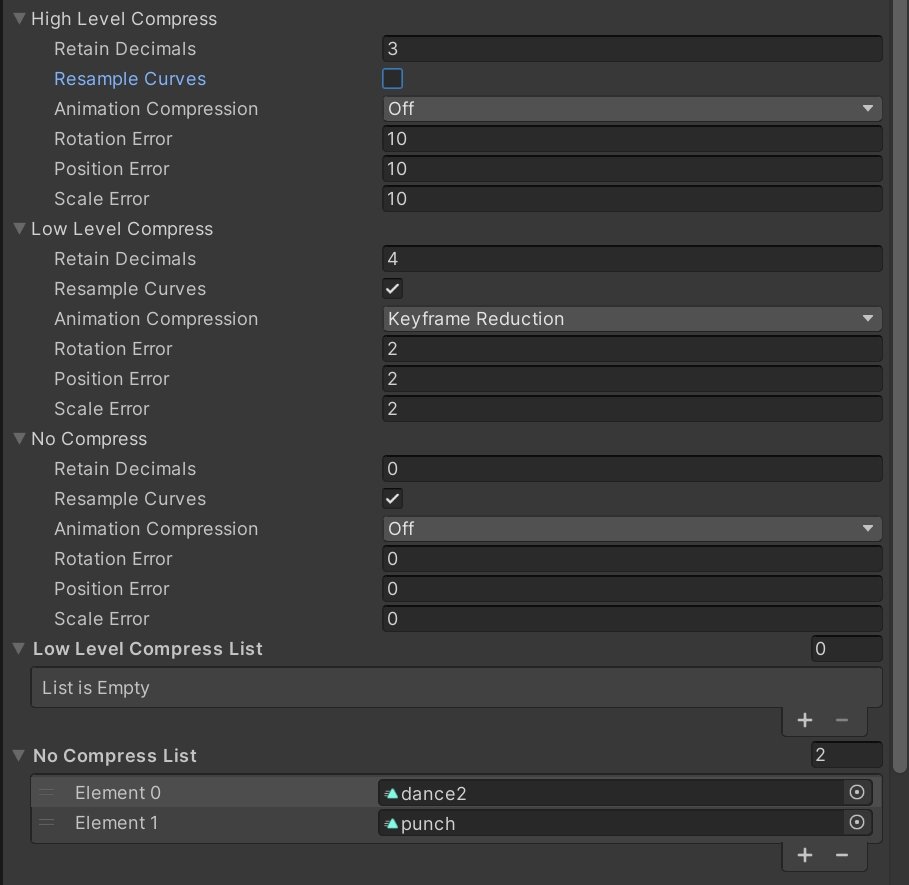
Three levels of compression wth default settings
All levels of compression have their default settings, and the specific values are decided via compression trials. I’ve also used lists to track the history of compression due to practical concerns.
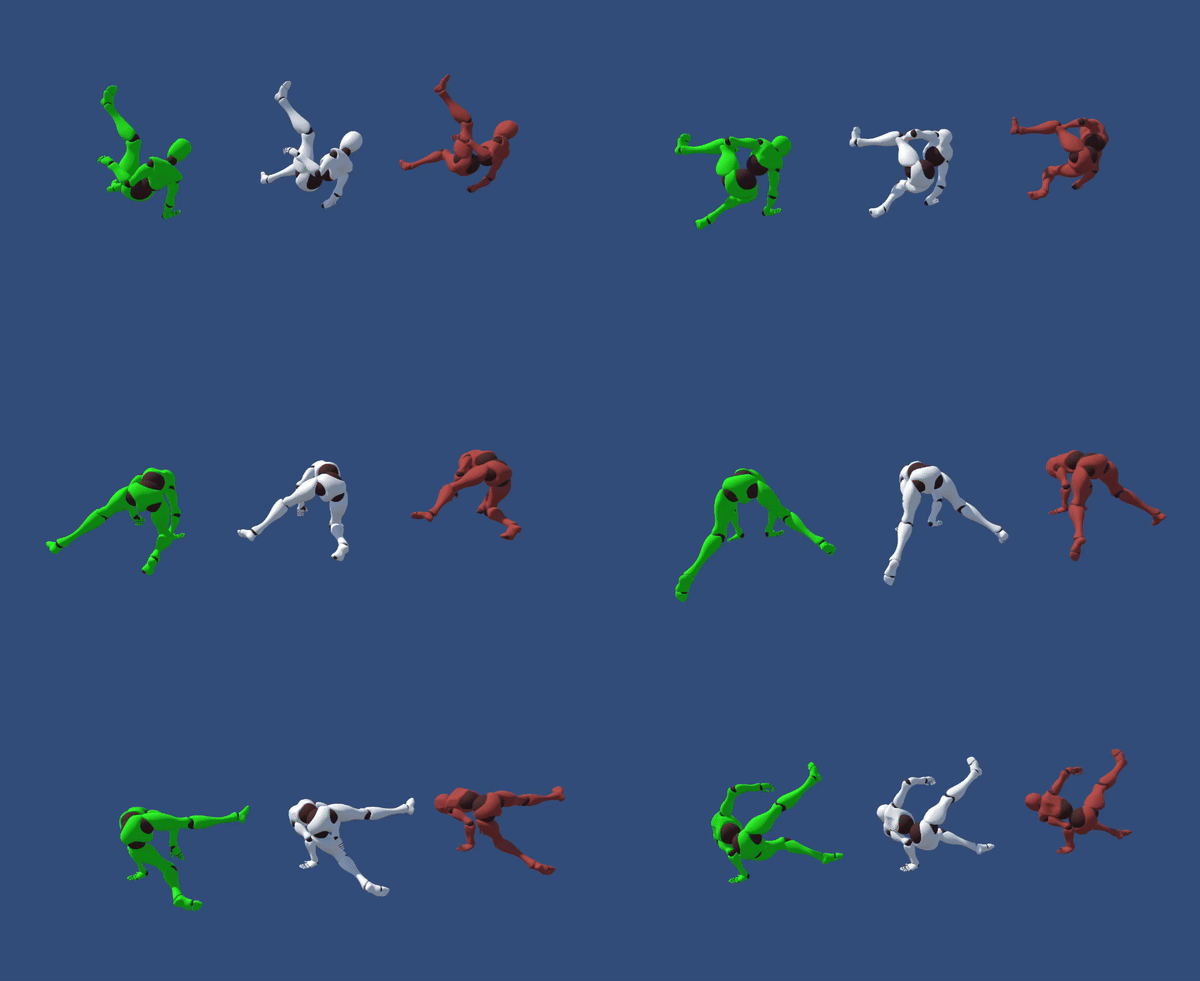
Dance examples of three compression levels: high (left, green), low (white, middle), no (red, right)
Future Expanison
Set up more/less compression levels with demands
Loop time will itself result in significant larger size than normal played animation time. Cancel out loop time for certain one-time animations (e.g. sword swing)
Avoid unnecessary modification by irrelevant working people